Watching YouTube videos offline can be useful when you are travelling, have limited internet access, or simply want to avoid buffering. Fortunately, YouTube provides an official way for eligible users to download videos for offline viewing on a computer.
In this guide, we explain how to download YouTube videos on your PC or laptop using YouTube’s built-in download feature.
Can You Download YouTube Videos on a PC or Laptop?
Yes. YouTube offers an official download option for eligible videos and users. In many cases, access to offline downloads on a computer requires a YouTube Premium membership.
The feature allows you to save supported videos for offline viewing within YouTube. This is different from downloading a video as a normal MP4 file that you can freely move to another device.
Before downloading, make sure you are signed in to the correct YouTube account and have an active Premium membership if the download option requires it.
How to Download YouTube Videos on a Laptop or PC
Follow these simple steps:
Step 1: Open YouTube
Open a supported web browser on your computer and visit YouTube.
Sign in to your YouTube account if you have not already done so.
Step 2: Find the Video You Want to Watch Offline
Search for the video you want to download.
Open the video and look below the video title and description area for the available options.
Step 3: Select the Download Option
If the video supports offline viewing, you should see a Download option.
Click Download to begin saving the video for offline viewing.
Depending on your browser or account settings, you may see an additional permission or confirmation request. Follow the instructions displayed on your screen.
Step 4: Wait for the Download to Complete
Once the download begins, wait until the process has finished.
The downloaded video will then be available through YouTube’s Downloads section.
How to Find Downloaded YouTube Videos on Your PC
Finding your downloaded videos is straightforward.
- Open YouTube.
- Click the menu icon in the top-left corner.
- Look for Downloads.
- Select Downloads to see the videos available for offline viewing.
From there, you can select a downloaded video and watch it without an active internet connection, subject to YouTube’s offline-download requirements.
How to Remove a Downloaded Video
Downloaded videos can take up storage space, so you may want to remove them after watching.
To remove a download:
- Open the Downloads section on YouTube.
- Find the video you want to remove.
- Click the three-dot menu next to the video.
- Select Remove from downloads.
The video will be removed from your offline downloads.
Do You Need YouTube Premium to Download Videos?
For YouTube’s official computer download feature, YouTube Premium may be required, depending on the video, account, and location.
Premium also provides other benefits, such as ad-free viewing and access to YouTube’s offline features.
Availability and requirements can vary by country and YouTube’s current policies, so check the options displayed on your own account.
Can You Download Every YouTube Video?
Not necessarily. The official download feature is not available for every video or in every situation.
If you do not see a Download button, the particular video may not support offline downloads, or the feature may not be available for your account or location.
YouTube also places restrictions on how offline content can be accessed. Downloaded content is generally intended for viewing through YouTube rather than being treated as a regular video file.
Why Use YouTube’s Official Download Feature?
Using YouTube’s built-in download option has several advantages:
- It is provided directly by YouTube.
- You do not need to visit unknown third-party downloader websites.
- You can access supported videos through YouTube’s Downloads section.
- It is convenient for travel and areas with unreliable internet.
- It helps you avoid unnecessary browser extensions or unfamiliar software.
What About Third-Party YouTube Download Websites?
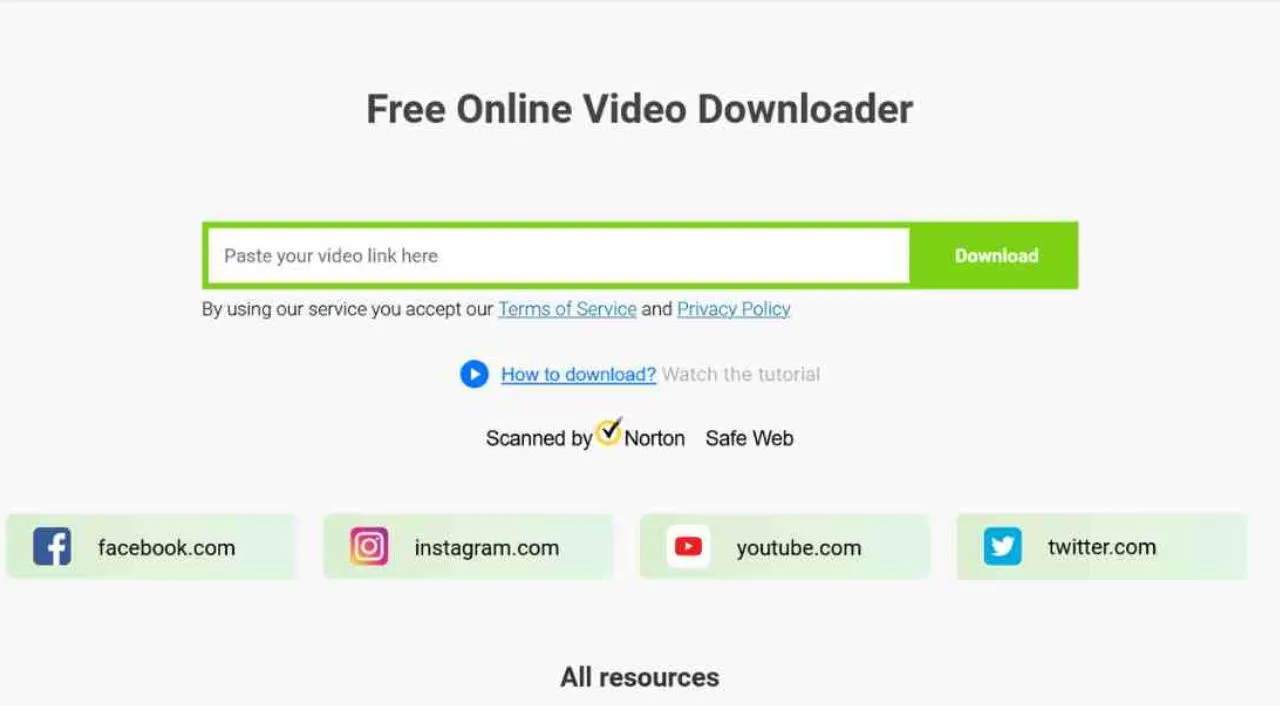
You may find websites and software claiming to download YouTube videos as MP4 files. However, these services can involve advertising, unwanted software, privacy concerns, or other risks.
More importantly, downloading content outside YouTube’s permitted methods may conflict with YouTube’s terms or the copyright holder’s rights.
For the safest approach, use YouTube’s own download functionality and respect the copyright and usage rights associated with each video.
Final Thoughts
Downloading YouTube videos to a PC or laptop does not have to be complicated. If YouTube’s official Download option is available for a video, you can use it to save the content for offline viewing.
Simply open YouTube, select the video, choose Download, and later access your saved videos through the Downloads section.
Remember that YouTube Premium, video availability, offline access and download features can vary depending on your account, location and YouTube’s current policies.
Read Also: